
Account and organization
Change your account settings
Change your name, default high-frequency word list, or password, and learn why your email address cannot be edited here.
Change your name
In Contact Information:
- Change your first name or last name.
- Select Save Changes.
- Wait for the green confirmation message.
Both name fields are required.
Why the email box is grey
Your email address is shown in a grey box. You cannot type in it.
Email changes need an extra verification process, so they are not currently available in Settings. A grey email box does not mean that your account is broken or that you lack permission.
If the address must be corrected, contact your Cody Reading support contact or your organization’s administrator.
Choose your default word list
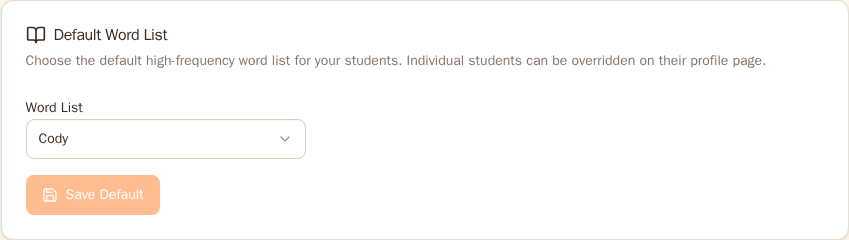
The Default Word List section chooses the high-frequency word list Cody normally uses for your students and for work made directly from a lesson.
- Open the Word List menu.
- Choose a list.
- Select Save Default.
This is a default, not an instruction that replaces every other setting. Cody uses this order for a student:
- a list required by the student’s curriculum;
- a list chosen specifically for that student;
- your default list; then
- Cody’s standard list if no other choice was saved.
Because of that order, changing your default may not change a student whose curriculum fixes the list or who already has an individual choice.
Parents do not see the Default Word List section.
Change your password
In Change Password:
- Enter your current password.
- Enter a new password with at least 8 characters.
- Enter the new password again in Confirm New Password.
- Select Change Password.
The two new-password entries must match.
If you do not remember your current password, sign out. On the sign-in page, select Forgot your password? Enter your email address, then use the reset code sent to your email.
If your organization uses a separate sign-in system, ask its administrator how your password is managed.
Settings for your organization or plan
This page is for your personal account. Other controls appear elsewhere when your role and plan allow them:
- Organization Settings is in the left menu for organization owners and administrators.
- Manage plan appears in the account menu for paid plans.
- Parent and billing controls appear only for people with the matching role and enabled features.
If you do not see one of these choices, your role, plan, or organization’s setup may not include it.
Still stuck? If something is broken rather than confusing, tell us what happened and we will look into it.