
Materials
Find your saved materials
Open Materials to find, filter, open, or download work that you and your organization have created.
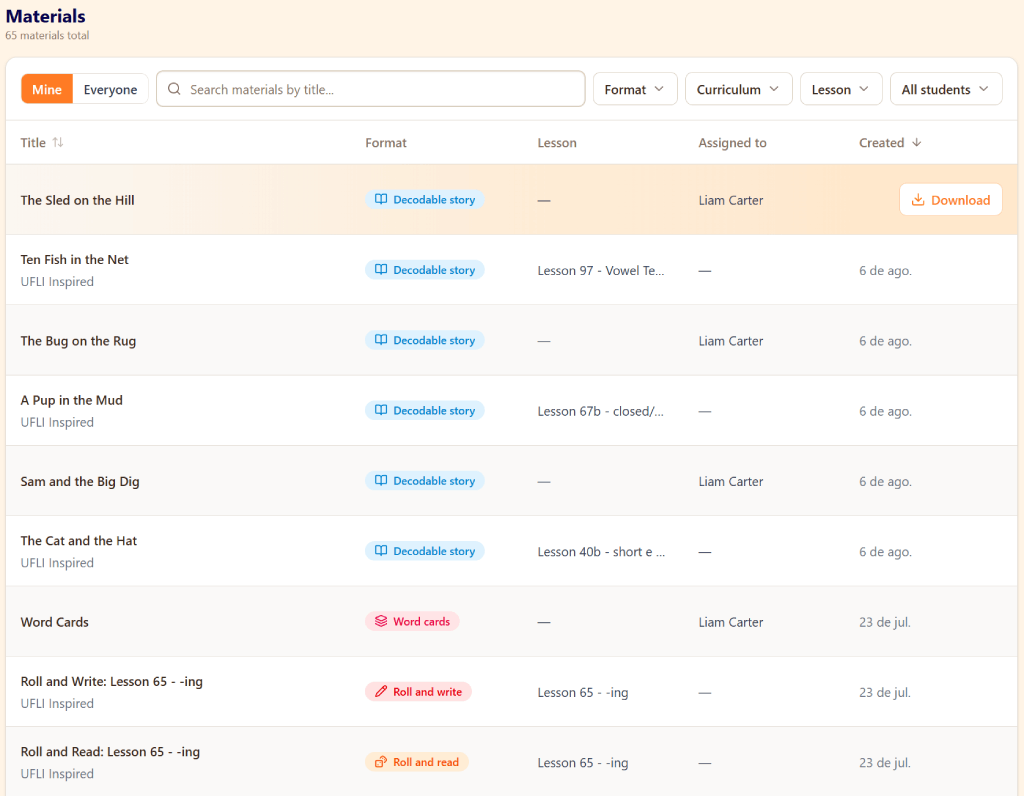
Mine and Everyone
The list starts on Mine. This shows only the materials you created.
Choose Everyone to see materials from your whole organization. An Owner column then shows who made each item.
This is useful when a colleague has already made something you can reuse.
If you are the only person in your organization, Mine and Everyone may show the same materials.
Search for a title
Use the box labeled Search materials by title when you remember all or part of a material’s name.
Search looks at titles. It does not search the words inside a story or worksheet.
Use filters when you do not remember the title
You can narrow the list by:
- Format, such as a story, word list, or worksheet;
- Curriculum;
- Lesson; or
- Student.
You can select more than one Format, Curriculum, or Lesson. The Student filter uses one student at a time.
The active choices appear as labels below the filters. Select the X on one label to remove only that choice. Select Clear all to remove every filter and the title search together.
Understand a material row
A row can show:
- the material’s title;
- its curriculum and lesson;
- its format;
- the students or classes it is assigned to;
- its owner when Everyone is selected; and
- the date it was created.
On a narrow screen, the format, curriculum, or lesson may move underneath the title. The information has not disappeared.
A dash means that no value was attached to that material. For example, a material created from a lesson may not be assigned to a student.
Open or download a material
Select anywhere on a row to open it.
Use Download when you want the saved file. On a wider screen, this action may appear when you point to the row. On a small screen, it remains visible.
Download is disabled when that material does not have a downloadable file. You can still select the row to open it.
If you still cannot find something
Try these steps in order:
- Choose Everyone. A colleague may have created the material.
- Select Clear all. A title search or filter may be hiding it.
- Check the total above the list. This tells you how many items match your current view.
- Scroll farther down. Cody loads more matching materials as you reach the end of a long list.
- If it was made for a student, choose that student in the filter.
Still stuck? If something is broken rather than confusing, tell us what happened and we will look into it.