
Getting started
Find your way around Cody Reading
Use Home to create, the left menu to find your work, and the account menu to change your personal settings.
Start on Home
Home is the place to create something new. At the top of the page, choose whether you want to work from a Lesson or a Student. Then select one of the material tiles below.
Recent work appears farther down under Pick up where you left off. Select an item there to open it again, or choose View materials to see the full list.
Learn how to start from a lesson or a student.
The top bar
The top bar stays on the screen as you move through Cody Reading.
- On the left, the logo takes you to Home.
- On the right, you may see plan or usage information, notifications, and your name or picture.
- On a smaller screen, use the menu button to open the left menu. The Create button takes you straight to Home.
Important: selecting the logo clears anything still open on the create page. If you want to keep that work, finish or download it before selecting the logo.
The left menu
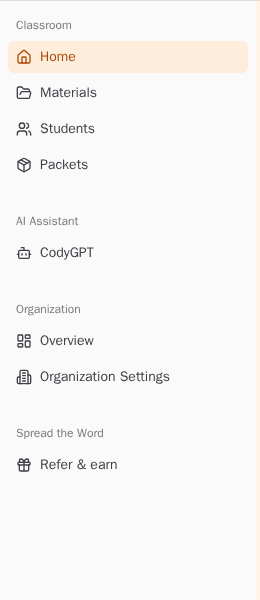
The Classroom section contains the pages you will use most often:
- Home is where you create stories, worksheets, word lists, and other activities.
- Materials is where you find, open, and download work you have already made.
- Students is where you view student profiles and the material connected to each student.
You may also see Lessons or Packets. These features are not available to every account yet.
If you belong to an organization, an Organization section holds the tools for your shared workspace. Some of its pages are only for owners or administrators.
On a computer, Minimize Menu at the bottom hides the words and leaves the icons. Select it again to show the full menu.
Your account menu
Select your name or picture in the top-right corner. This menu always gives you access to your personal Settings and Logout.
Depending on your account, it may also show:
- Manage plan if you have an Individual, Center, or Enterprise plan
- Parents if you manage parent access
- Switch Organization if you belong to more than one organization
If something here isn’t in your menu
Not every account sees every feature. A missing item usually means the feature is still being introduced, is limited to a particular role, or is not part of your plan.
Why can’t I see that feature? walks through each case.
Still stuck? If something is broken rather than confusing, tell us what happened and we will look into it.