
Concepts
The curricula Cody supports
Cody can follow different phonics curricula, and the choices shown in your account depend on your organization.
What you may see
The curriculum menu in your account is the accurate list. It is shorter than the one below, because most sequences are enabled per organization.
UFLI Inspired follows the scope and sequence of UFLI Foundations, the explicit foundational-skills program from the University of Florida Literacy Institute. Lessons are numbered, so you choose the lesson that matches the one you are teaching. This is the sequence most accounts start on. About UFLI Foundations
Custom Pattern Selection is not somebody else’s sequence. You pick a starting grade level and then decide, pattern by pattern, what the student knows. Use it when your instruction does not follow one published program.
Two more sequences are available to organizations that use them:
Slant System follows the Stage 1 to Stage 4 teaching sequence from
Classmates Educational Group’s Slant System, a K-3 structured literacy
program. Lessons carry Slant’s own <unit>-<sub> labels so you can line them
up against your materials.
About the Slant System
Phonics, Reading, and Me follows Sets A to D of Learning Without Tears’ Phonics, Reading, and Me. It brings its own high-frequency word list, so students on it use that list rather than Cody’s. About Phonics, Reading, and Me
More sequences are being added. If one appears in your curriculum menu, it has been enabled for your workspace and is ready to use.
Cody’s materials are original. They are not created by, or endorsed by, the University of Florida Literacy Institute, Classmates Educational Group, or Learning Without Tears.
Choosing one
Choose the curriculum whose lesson order matches the instruction the student is receiving. Do not choose by lesson number alone. Lesson 12 in one curriculum can teach different patterns from Lesson 12 in another.
When you add a student, Cody asks for a curriculum and a starting lesson. If your organization offers only one curriculum, it may already be selected.
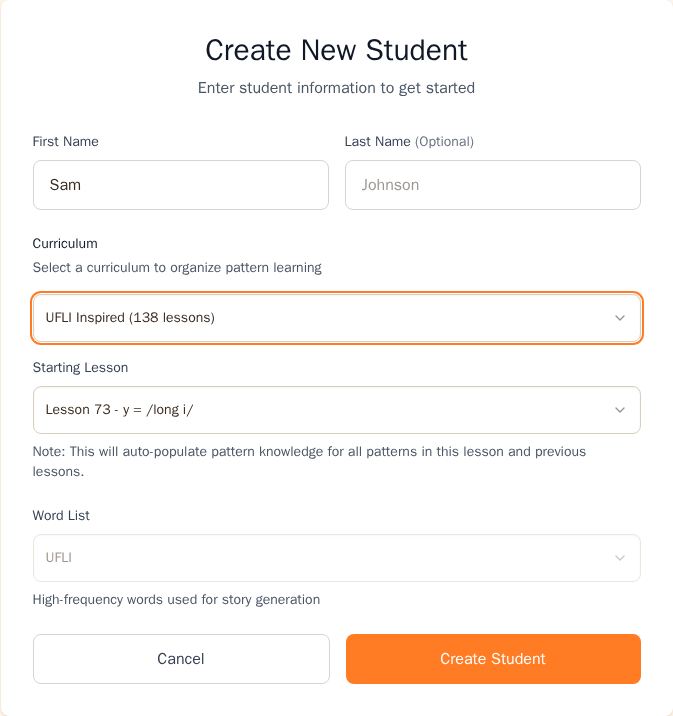
Different students in the same class can use different curricula. For example, a student may receive intervention through a different sequence from the one used for whole-class instruction.
Set the organization default
The default curriculum saves teachers from choosing a curriculum each time they create from a lesson.
Only the organization owner can change this setting:
- Open Organization Settings from the left menu.
- Find Default curriculum.
- Choose the curriculum your organization normally uses.
- Select Save Changes.
The default affects lesson-based creation. Each student’s own curriculum still controls material created for that student.
Before changing a student’s curriculum
Changing the curriculum resets the student’s pattern progress. All pattern assessments tied to the current curriculum are cleared. Lesson numbers and saved pattern states do not transfer to the new curriculum.
If you still need to change it:
- Open the student and stay on Profile.
- Select Change Curriculum.
- Read the warning and select Continue.
- Choose the new Curriculum and Starting Lesson.
- Select Change, then review the student’s Phonetic Patterns.
Use Custom Pattern Selection
Custom Pattern Selection is for a student whose instruction does not match one listed sequence. This can apply to a mixed approach or individualized intervention.
You can choose it while you add the student. Open Students, select Add Student, and pick Custom Pattern Selection as the curriculum. It asks for a starting grade level instead of a numbered lesson.
The quick New student form on Home does not offer it. That form is for starting a student on a teaching sequence, and Custom is a pattern picker rather than a sequence. If you created the student from Home, open their profile and use Change Curriculum to switch to Custom.
Either way, once the student is on Custom, use Manage patterns or the Phonetic Patterns grid to mark individual patterns as Known, Target, or Unknown. The student list shows Manage patterns in place of the usual lesson selector.
Still stuck? If something is broken rather than confusing, tell us what happened and we will look into it.